
Apple Pay
Pay with your HSBC Credit Card using Apple Pay
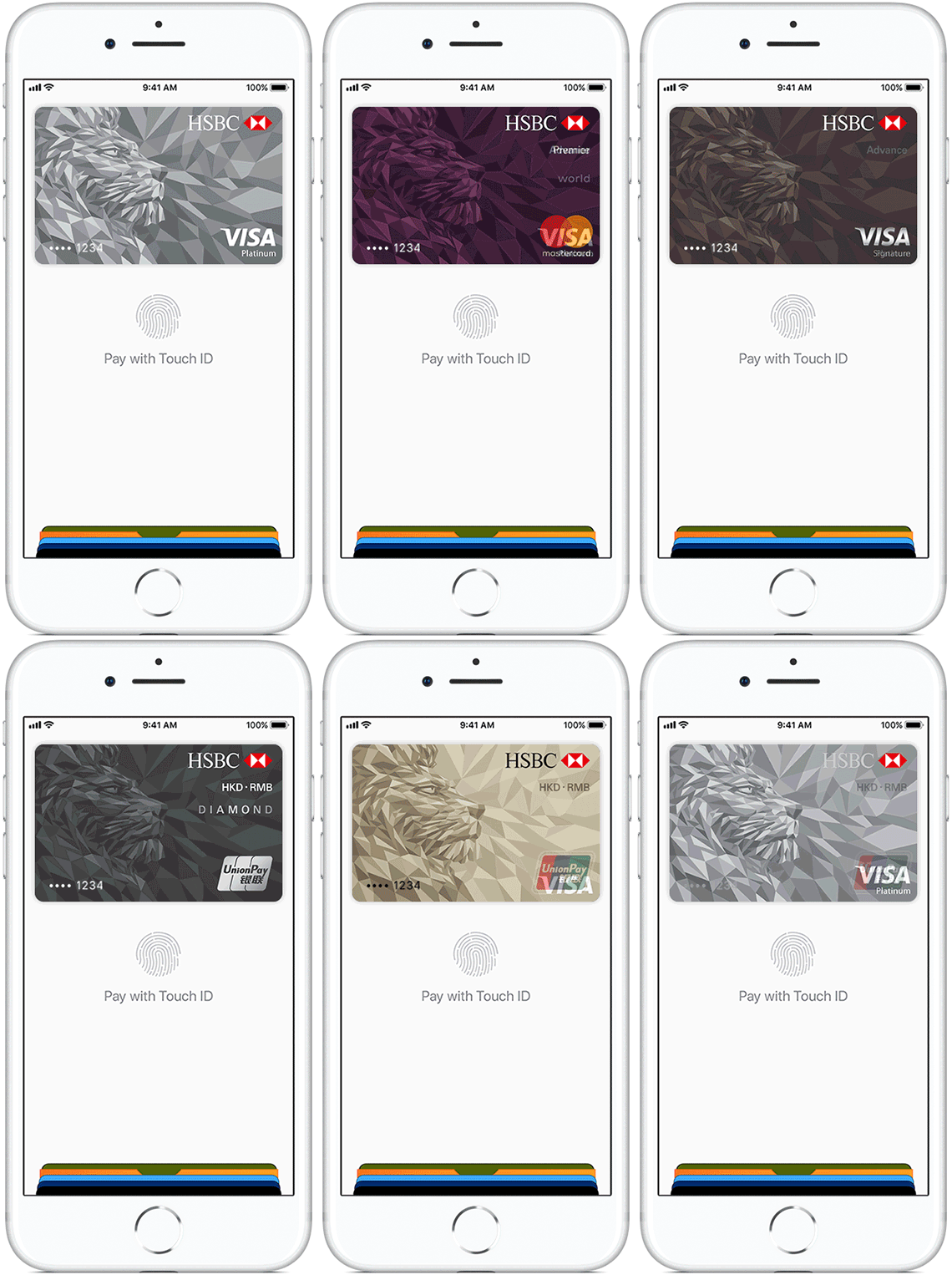
Now you can enjoy all the benefits of your HSBC credit card with Apple Pay on iPhone, Apple Watch and iPad1. It’s the easy, secure, and private way to pay.
Just add your card to Apple Pay and you are ready to make payments at thousands of stores with contactless payment terminals or via participating apps.
Benefits
- Apple Pay is simple and it works with the devices you use every day
- Apple Pay is safe as only you can make payments from your device given every payment requires Touch ID or a passcode on iPhone and iPad; and your Apple Watch must be unlocked
- Apple Pay is secure because your card information isn’t stored on your device or shared when you pay
- You can easily manage your Apple Pay transactions. Your last 10 transactions are available in your device2 and all transactions will be grouped on your statement with clear indication of “APPLE PAY”
- You can continue to enjoy all the benefits and rewards from your HSBC credit card
Ready to use Apple Pay?
- I have an eligible Apple device1
- I am a cardholder with a personal HSBC HKD Visa Credit Card or Mastercard Credit Card or UnionPay Dual Currency Credit Card
Don't have an HSBC credit card? Do you want to use Apple Pay?
What’s New
Setting up is simple
HSBC Visa and Mastercard credit cards
Please log on to the HSBC HK App and follow these steps:
- Go to 'Cards' and swipe to the card you want to add.
- Select 'Add to Apple Wallet'.
- Read and agree to the disclaimer, then choose 'Get verification code'.
- Enter the OTP we sent you by SMS, then select 'Confirm'.
You can also open your Apple Wallet app and follow these steps:
- Select the '+' icon at the top right corner.
- Choose 'Debit or Credit card', then 'Add a Different Card'.
- Follow the on-screen instructions and enter your card details.
- Read and agree to the disclaimer.
- Go to the HSBC HK App or call our hotline to complete the verification.
HSBC UnionPay credit cards
Please open your Apple Wallet app and follow these steps:
- Select the '+' icon at the top right corner.
- Choose 'Debit or credit card'.
- Select 'Add a different card'.
- Follow the instructions on the screen and enter your card details.
- Call our hotline centre to complete the verification.

More Information:
- You can add up to eight3 credit cards to a single device, and each card can be added to up to nine different devices
- The first card that you added will become your default card. Payments will be made with this card by default, unless you select another card. You can change your default card at any time by going to Settings, then selecting 'Wallet & Apple Pay'.
- You can also remove your card at any time by going to Settings, then selecting 'Wallet & Apple Pay'.
Add your credit card to Apple Pay
Help and support
Contact us
HSBC Premier Elite customers
Call (852) 2233 3033
HSBC Premier customers
Call (852) 2233 3322
Other customers
Call (852) 2233 3000
Credit card offers
Call (852) 2748 8033
To borrow or not to borrow? Borrow only if you can repay!
Related products
HSBC Premier MasterCard Credit Card
Get instant recognition, personalised services and privileges all over the world.
HSBC Visa Signature Card
Enjoy extra RewardCash and special travel and leisure privileges.
HSBC easy Credit Card
The HSBC easy Credit Card offers cardholders a wide range of unsurpassed advantages, instant recognition and exclusive privileges.
HSBC with Google Pay
Now you can enjoy all the benefits of your HSBC credit card with Google Pay. It’s a simple and secure way to pay.